Compatibility
What LayerGlance works with, what it needs from your printer and network. Please check this page before buying a licence or hardware.
- 01PrinterLocal LAN status
- 02Your networkNo Bambu Cloud login
- 03Your viewApp, Touch or Glow
Printers
LayerGlance works with Bambu Lab printers only. Status, progress, temperatures, AMS, AMS Lite and AMS HT filament and the external spool are read the same way on every model; the chosen model only decides whether a chamber temperature is shown.
| Family | Models | Status | Notes |
|---|---|---|---|
| X1 series | X1 Carbon | Supported | |
| A1 series | A1 mini, A1 mini Combo (AMS Lite) | Supported | Supports AMS Lite. |
| X1 series | X1, X1E | Supported | Same status format as the X1 Carbon. |
| A1 series | A1, A1 Combo | Supported | Same status format as the A1 mini. |
| P1 series | P1P, P1S | Supported | |
| H2 series | H2D, H2D Pro, H2S, H2C | Supported | One nozzle temperature is shown on dual-nozzle models, and only the main external spool. |
| Newer models | P2S, X2D, A2L | Supported |
Every Bambu Lab printer uses the same local status protocol, so all the models above are supported. If your printer does not work as described, contact hello@fiddlercrab.eu and we will fix it. Printers from other makers are not supported.
How we connect to your printers
LayerGlance reads status through the printer's local network (LAN) interface, using its IP address, serial number and LAN access code. The connection is local MQTT over TLS on TCP port 8883. LayerGlance does not connect to Bambu Cloud or require a Bambu account. You can leave your printer connected to Bambu Cloud and keep using Bambu Handy and Bambu Studio alongside LayerGlance.
No Developer Mode or LAN Only Mode is required on supported firmware. Local LAN monitoring does not mean switching your printer into LAN Only Mode, which disconnects it from Bambu Cloud. LayerGlance reads status without changing your printer's connection mode.
In its authorization update explanation, Bambu Lab says that MQTT status reporting remains available to third-party monitoring tools. LayerGlance uses this read-only local status access. It is an independent integration, not an endorsement or a guarantee from Bambu of permanent compatibility.
Monitoring works only while your printer's firmware retains the required local interface. Bambu Lab may change, restrict or remove access, including in a firmware update. We will make reasonable efforts to maintain compatibility, but affected features may stop working if the required access becomes unavailable. Your mandatory legal rights remain unaffected; see the licence and sale terms.
Optional iPhone lock-screen updates use your LayerGlance Bridge, our push service and Apple's notification service over the internet. The bridge still obtains printer status through the local interface, not through Bambu Cloud.
Printer set-up requirements
The same requirement applies to the app, LayerGlance Touch, LayerGlance Glow and LayerGlance Bridge:
- A supported Bambu Lab printer (see the table below) on the same local network as the device, or as the bridge computer if you use one. The printer must be reachable on TCP port 8883, its local status connection, so client or AP isolation must not separate them.
- The printer's IP address, serial number and LAN access code. The printer shows the IP address and access code under Settings → Network and the serial number under Settings → Device.
- LAN Only Mode does not have to be switched on. On supported printer firmware, local access continues to work while Bambu Cloud features are enabled. No Bambu account or password is needed. Keep your usual Bambu account on the printer to continue using Bambu Handy and Bambu Studio; you do not give that account to LayerGlance.
- LayerGlance only reads the status the printer publishes on your network. It does not start prints or control the printer, and it does not need Developer Mode for this on the firmware we have tested. Requirements may differ if Bambu changes local access on another firmware version; check this guide before updating your printer.
Printer firmware: we test with the current Bambu Lab firmware on our own printers (for the X1 Carbon, firmware 01.08.05 or later). A printer firmware update may change the local interface, require a compatibility update from us or make the required access unavailable.
Devices and systems
| Product | Requirements |
|---|---|
| LayerGlance app | iPhone or iPad with iOS or iPadOS 15 or later, including iPad Air 2. Widgets and Live Activities need iOS or iPadOS 17 or later and LayerGlance Pro. The Apple Watch app and complications need watchOS 10 or later, an iPhone with LayerGlance Pro and a paired LayerGlance Bridge. Free monitors two printers; Pro supports up to ten printers. |
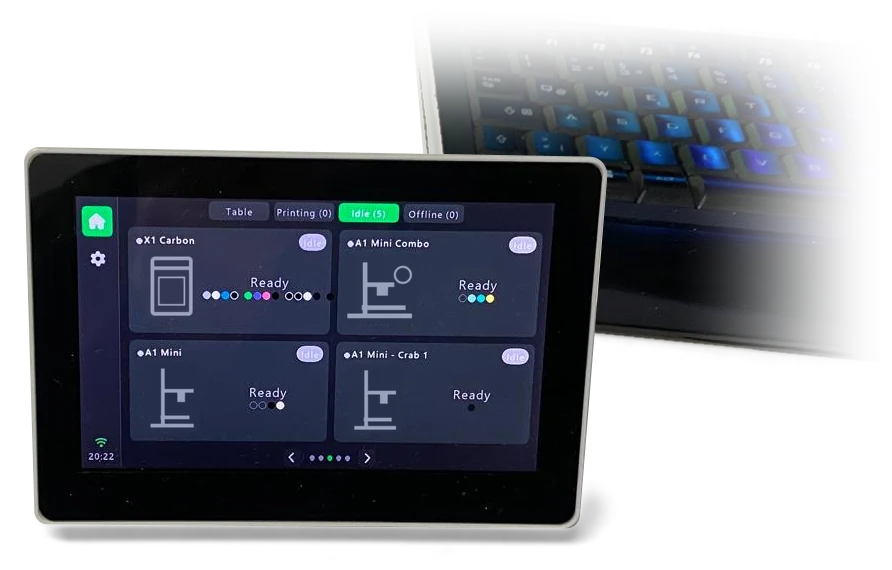
| LayerGlance Touch | Waveshare ESP32-S3-Touch-LCD-5B, the 1024 × 600 touch version (see the parts list), and a 2.4 GHz Wi-Fi network. Free shows two printers, Pro up to eight, directly or through LayerGlance Bridge. |
| LayerGlance Glow | Waveshare ESP32-S3-Zero (4 MB flash / 2 MB PSRAM), 5 V WS2812B-type RGB or SK6812 RGBW strips and a 2.4 GHz Wi-Fi network. Glow Pro supports a white RGBW work-light channel with an after-print timer. It follows one printer. Free drives one strip of up to 10 LEDs; Pro up to four strips of 300 LEDs. |
| LayerGlance Bridge | A computer that stays on: 64-bit Windows (tested on Windows 11), or 64-bit Linux (x86-64 or ARM64) with systemd, such as Debian 12 or 13. A 64-bit Raspberry Pi OS (Bookworm or later) build is verified under ARM64 emulation; native Pi hardware testing is still pending. 32-bit systems are not supported. No Python installation is needed. The bridge handles up to 10 printers on Free and up to 50 or 300 with the Farm or Fleet plan. It has been tested with up to 300 simulated printers on a PC, not yet with that many real printers. Raspberry Pi capacity still needs hardware qualification. Its setup page and TV view open only on the bridge computer itself. To show the TV view full screen on that computer's own display at start-up, the bridge needs Windows with Microsoft Edge, or Raspberry Pi OS with desktop (not Lite) and Chromium; the TV view is laid out for the official Raspberry Pi 7" touch display. |
| USB installer | Desktop Google Chrome or Microsoft Edge, which provide the Web Serial connection needed for flashing, and a USB data cable. Safari, Firefox and mobile browsers cannot install firmware. |
Network expectations
LayerGlance and LayerGlance Glow both work without a helper. The app connects directly while it is open; updates while your iPhone is locked need an always-on LayerGlance Bridge and an internet connection for Apple push. LayerGlance Touch falls back to checking printers directly when its bridge is unavailable. LayerGlance Glow follows one printer directly, or takes its printer, colours and updates from LayerGlance Bridge in a print farm. Use a trusted home network, or a separate network for your printers.
Read-only by design
The release products monitor local status. They do not start prints, move axes, change temperatures, upload files, or proxy raw command topics. LayerGlance Bridge reduces and bounds status data before sending it to a paired screen.
Independent integration
LayerGlance, LayerGlance Touch, LayerGlance Glow and LayerGlance Bridge are not affiliated with, authorised by, or endorsed by Bambu Lab.