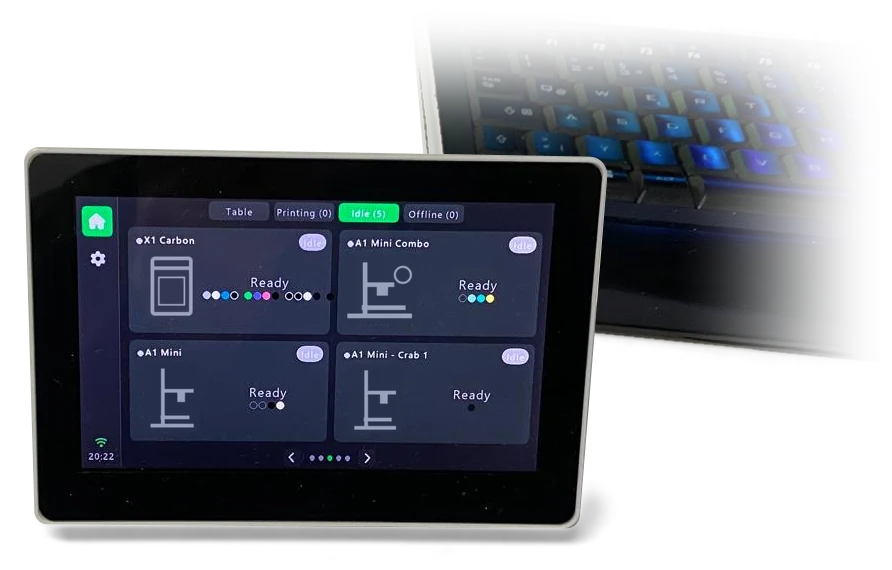
Touch screen
USB installA dedicated screen beside your work. Start with two printers free.
Get started Firmware only · hardware supplied separatelyUse your iPhone or spare iPad, build a permanent touchscreen monitor, or make your printer glow. Start with one or enjoy all three.
A dedicated screen beside your work. Start with two printers free.
Get started Firmware only · hardware supplied separately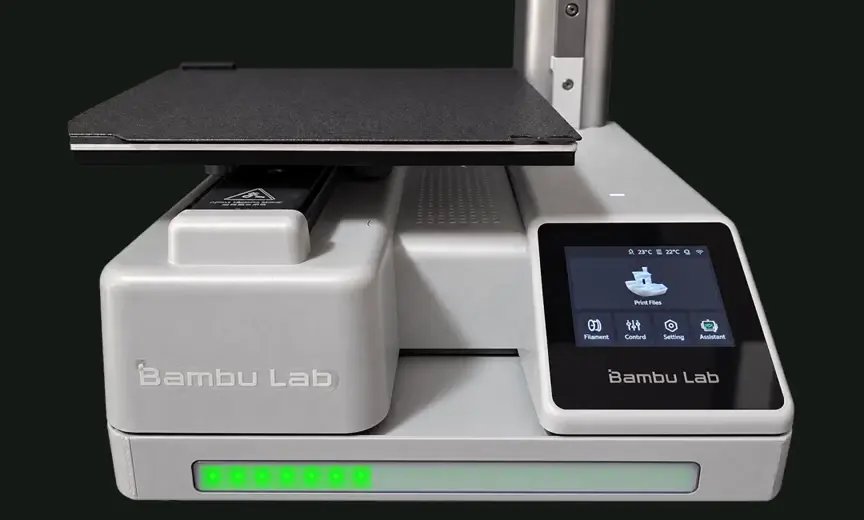
Make status visible in light. Start free with 10 LEDs; Pro unlocks longer strips.
Get started Glow Pro shown · simulated light output · hardware supplied separately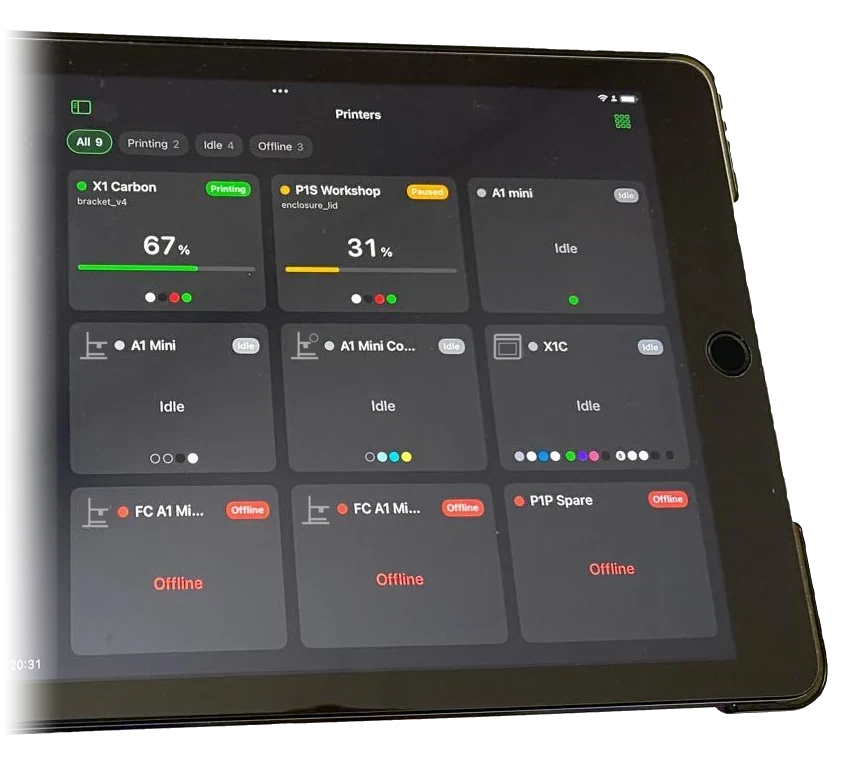
Use an iPhone or give a spare iPad a new job.
View release details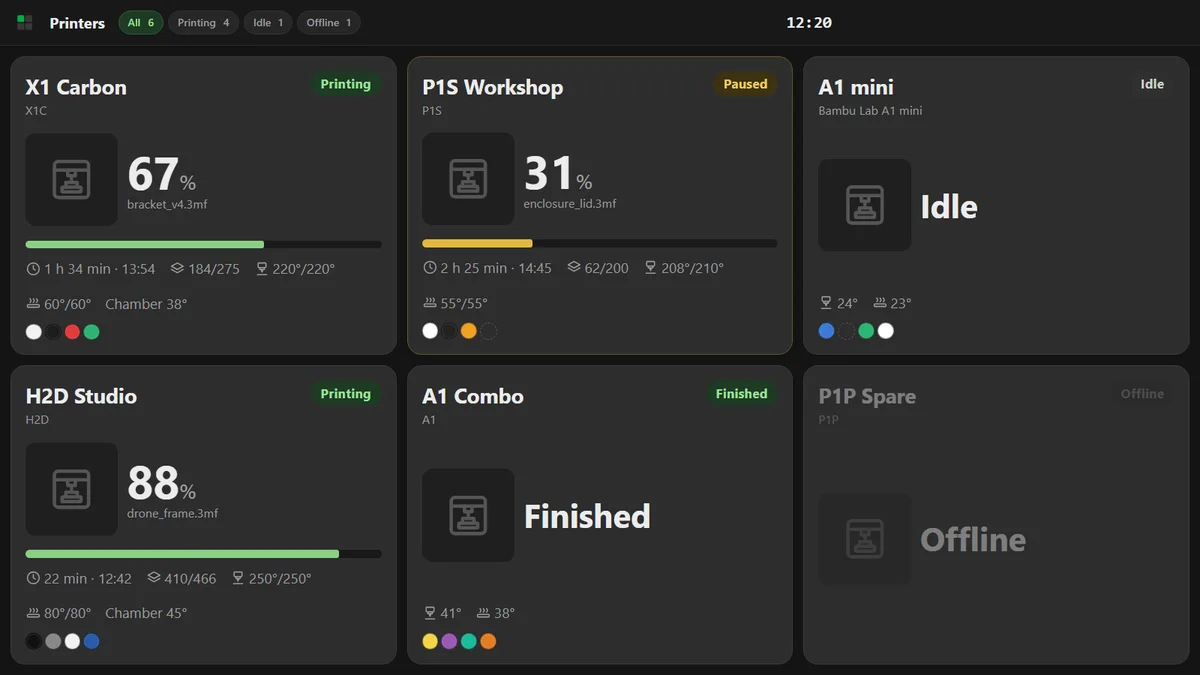
Share printer status with your paired screens, apps and lights. See platform availability below.
View release detailsThe App Store release is coming soon. The download link will appear here when the app is available.
The dashboard supports iOS and iPadOS 15 or later, including iPad Air 2. Widgets and Live Activities need iOS or iPadOS 17 or later and LayerGlance Pro. The Apple Watch app needs watchOS 10 or later, Pro and a LayerGlance Bridge. Fresh updates while locked also need an always-on LayerGlance Bridge.
Install it on one computer that stays on near your printers. Add your printers in its setup page, generate a pairing code, then enter that code in LayerGlance. Keep the computer awake for fresh updates.
It shares printer setup and live readings with paired apps and screens, takes the monitoring load off small screens, and supports Apple push updates while your phone is locked. The bridge is free for up to 10 printers, and up to 50 or 300 with the Farm or Fleet plan; app and screen limits still apply.
Want a wall display? In the bridge's setup page, Settings › Display has a switch that shows the TV view full screen on the bridge computer's own screen at start-up. To leave it, hold the top-left corner for 3 seconds. The Raspberry Pi build is verified under ARM64 emulation; see the compatibility guide for what it needs.
Install through the Microsoft Store on Windows 11 (64-bit x64). Setup and pairing open in the browser on that PC. Windows manages startup, and updates arrive through the Store.
Coming soon — awaiting Microsoft Store approvalFor a 64-bit PC (x86-64) running Debian 12 or 13 with systemd. Nothing else to install: the helper starts automatically and runs in the background.
Coming soon — opens with the Bridge releaseA 64-bit (ARM64) build for Raspberry Pi OS Bookworm or later, verified under ARM64 emulation. A native Pi hardware test is still pending; 32-bit Raspberry Pi OS is not supported.
Coming soon — opens with the Bridge releaseNo purchase or subscription is needed for the bridge's free ten-printer tier. LayerGlance Touch screens and LayerGlance Glow lights can use the bridge on Free, within their Free limits; the iPhone and iPad app needs LayerGlance Pro for bridge mode. You don't need the app to use a dedicated screen. LayerGlance Glow connects directly to one printer, or runs from the bridge in a print farm.
Connect the supported board by USB, open desktop Chrome or Edge, choose your product and follow the installer. No coding needed. Use a fresh install for a new board, or an update to keep your settings.
Open USB installer Check the parts listThe installer offers only firmware approved for release. Later updates are signed, and the device checks the signature before installing them.
LayerGlance Touch Free supports two printers, Pro up to eight. LayerGlance Glow Free supports one external strip of up to 10 LEDs in Status Update mode, plus the onboard status light. Pro unlocks four strips of up to 300 LEDs, more lighting modes and a white work light on SK6812 RGBW strips, with an after-print timer. A separate status strip can run alongside it.
Check the compatibility guide for supported printers, devices and browsers.
Free means free to use, not open source. Our apps, bridge and firmware are proprietary; the terms set out your licence. Third-party components keep their own licences: see the third-party notices, which the bridge installers also include.