Turn an old iPad into a Bambu Lab printer dashboard
Give the iPad in your drawer a permanent view of print progress, temperatures and alerts.
- iPadOS 15 or later
- 2 printers free
- Direct LAN monitoring
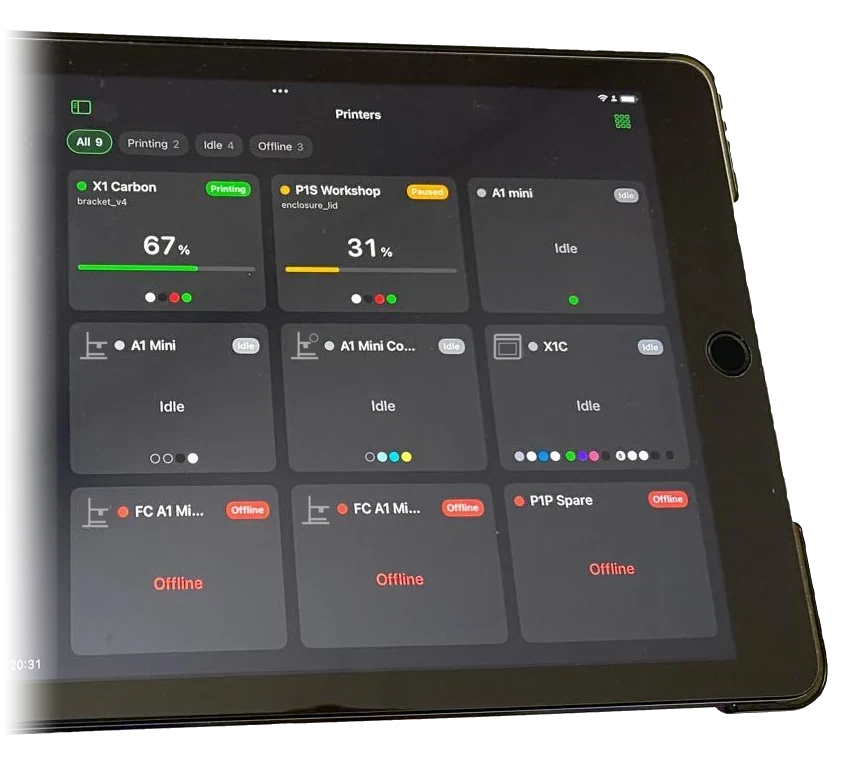
The useful screen might already be in your drawer.
- An iPad running iPadOS 15 or later. This includes iPad Air 2 when updated to a compatible version. Check the software version in Settings → General → About.
- A supported Bambu Lab printer on your network. Have its IP address, serial number and LAN access code ready.
- A charger and a stable stand. Keep the iPad ventilated and out of the printer's moving parts.
From spare iPad to workshop dashboard.
Install the app and register your Free licence.
Open the App Store link above on the iPad and install LayerGlance: Printer Companion. Sign into your FiddlerCrab account using email, Apple or Google. Use the same FiddlerCrab account across your devices to keep licences together.
If you want to explore first, choose Try Demo Mode. Its example printers do not connect to real hardware. Turn Demo Mode off before checking your own printer.
Add your printer in Setup.
Allow Local Network access when iPadOS asks. In the app's Setup screen, choose Add a printer or the + button. Give it a name, choose its model, and enter its IP address, serial number and LAN access code.
Use the connection test, then save. Start with one printer until its status and temperatures update. You can add a second printer on Free.
The printer's Network and Device settings show the details. You do not need to supply your Bambu Cloud password or switch on Developer Mode for supported firmware.
Make the screen easy to glance at.
Choose the grid for a clear view of several printers, or the table when you want to compare readings. In Display, adjust the grid and turn on Keep screen awake while the iPad is plugged in.
This keeps the display on only while LayerGlance is open. Set a comfortable screen brightness and keep the charger connected. Leave the setting off when using the iPad on battery.
Check a real print, then leave the app open.
Confirm that progress, layers, remaining time and temperatures change during a job. An idle printer should look idle; a printer that cannot be reached should look offline.
Leave LayerGlance in the foreground for this direct-connection dashboard. If you switch apps or lock the iPad, iPadOS can suspend that direct connection. Fresh lock-screen updates use a separate Bridge-and-Pro setup.
When would you add a Bridge?
One iPad, app open.
Direct monitoring works on Free for two printers. The printer connection runs on this iPad.
Shared setup or lock-screen updates.
Bridge runs on an always-on Windows or supported Linux computer. It shares printer setup with your paired views. Bridge-fed app monitoring, widgets, Live Activities and Watch need a paid app plan. Live Activities need iOS/iPadOS 17 or later.
Check current Bridge availability →Bridge is free for up to ten printers; Farm/Fleet raise its limits. Apple controls Live Activity timing and the eight-hour activity lifetime. Reopen the app to start another activity when needed.
If your printers stay offline.
Local Network permission?
Check iPad Settings for LayerGlance's Local Network permission and enable it if you want local printer access.
Same reachable network?
Guest Wi-Fi, client isolation or a VPN can prevent access even when web browsing works.
Changed printer address?
Compare its current IP with the saved value. A DHCP reservation on your router can keep it consistent.
Still seeing example printers?
Turn Demo Mode off in Display and return to your real configured printer list.
Apple's display and Auto-Lock guide explains the system setting; LayerGlance's own Keep screen awake switch is the simplest starting point here.
Get app setup help →Another way to see your prints.
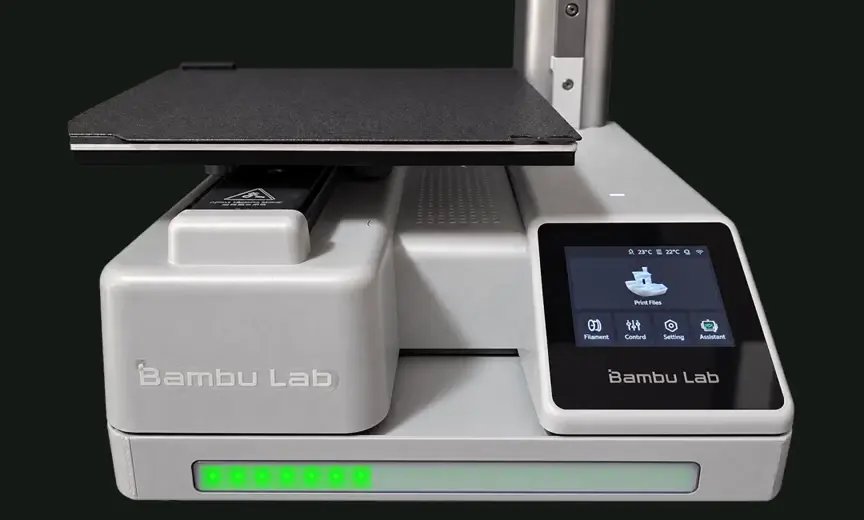
A light that follows your print.
A printed stand, one small controller and a line of light that grows with your print.
Read the guide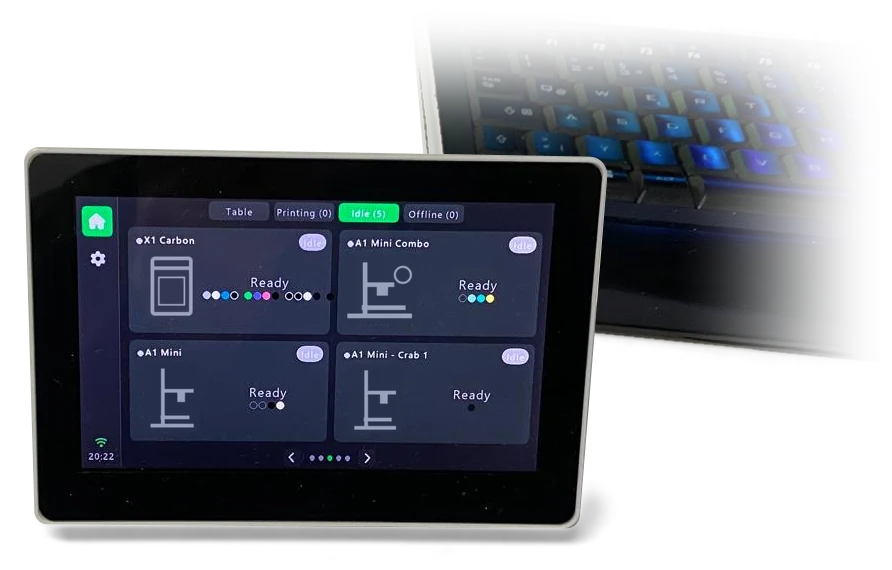
Your printers. Their own screen.
Choose the right five-inch board, flash it in your browser and put your printer view beside your tools.
Read the guideLayerGlance is an independent FiddlerCrab product for compatible Bambu Lab printers. Hardware is supplied separately. Check compatibility.