Set up a dedicated Bambu Lab printer touchscreen
Choose the right five-inch board, flash it in your browser and put your printer view beside your tools.
- 5-inch touchscreen
- USB browser install
- 2 printers free
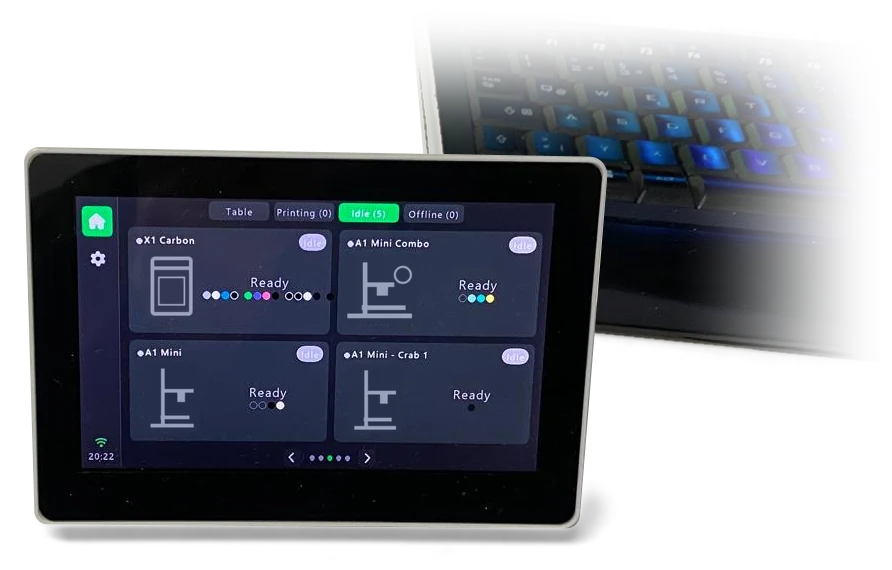
Start with the exact supported screen.
- Waveshare ESP32-S3-Touch-LCD-5B. Choose the touch-enabled, upgraded 1024 × 600 version, with 16 MB flash and 8 MB PSRAM.
- USB-C data cable and stable USB power. A charge-only cable cannot flash firmware.
- An optional stand or enclosure. Keep the antenna area clear of metal. No Raspberry Pi or separate controller is required.
A screen of its own, in three steps.
- 01Plug inUSB data cable
- 02InstallDesktop Chrome or Edge
- 03ConnectWi-Fi + local printer
Install Touch over USB.
On a desktop PC, open the Touch installer in Chrome or Edge. Sign into a free FiddlerCrab account, disconnect any separate power source and connect the board with a USB data cable.
Choose LayerGlance Touch and a fresh install for a new board. Use the settings-preserving update for an existing installation. Select its ESP32-S3 serial port and keep the cable connected until the installer reports success.
Open the Touch USB installer →Connect the screen to Wi-Fi.
For a fresh installation, keep USB connected. In the installer choose Next → Logs & Console, press RESET once and privately record the “Setup WiFi password”. Join the network beginning LayerGlance-Touch-, then open http://192.168.4.1/wifi and enter your normal 2.4 GHz Wi-Fi details.
After the screen joins your network, return your phone or PC to its normal Wi-Fi. Use Touch's network/About information to find its new address when you need its web settings.
Add the printer and choose your view.
In Touch's printer setup, enter the printer's IP address, serial number and LAN access code. Start with one printer, check its live status, then add another if you want it.
Find the IP address and LAN access code on your printer under Settings → Network, and its serial number under Settings → Device. Menu wording can vary by printer firmware. Keep the access code private.
Your printer and display/controller must be able to reach each other on the network. A guest Wi-Fi network or client isolation can prevent that. Bambu Cloud can stay enabled; LayerGlance does not need your Bambu login.
Touch Free displays up to two printers. Touch Pro increases that to eight on this screen. You can connect directly; a Bridge and the iPhone app are optional.
Give it a job beside your tools.
- Check that the configured printer is online and its temperatures update.
- During a print, compare progress and remaining time with the printer.
- Restart the screen once to check Wi-Fi recovery and saved settings.
- Place it in its stand or enclosure with the antenna clear and power stable.
Normal later firmware updates are signed. Use the device's update flow or return to the browser installer with the settings-preserving option.
If setup pauses along the way.
No USB port?
Try a known data cable, desktop Chrome or Edge, and the correct board. Close other serial tools using that port.
Wrong-board warning?
Stop and check the exact model and flash capacity. Do not force the Glow image or another display's firmware onto Touch.
Wi-Fi connects, printers do not?
Recheck printer details and guest/client isolation. A working internet connection alone does not establish a local path to the printer.
Need more printers?
Touch Pro unlocks eight printers on one screen. The Free tier is enough to check your first two.
Another way to see your prints.
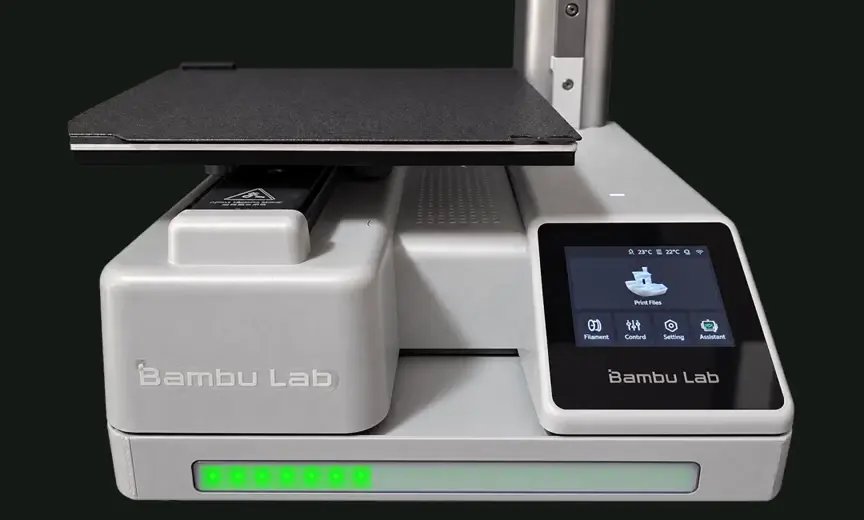
A light that follows your print.
A printed stand, one small controller and a line of light that grows with your print.
Read the guide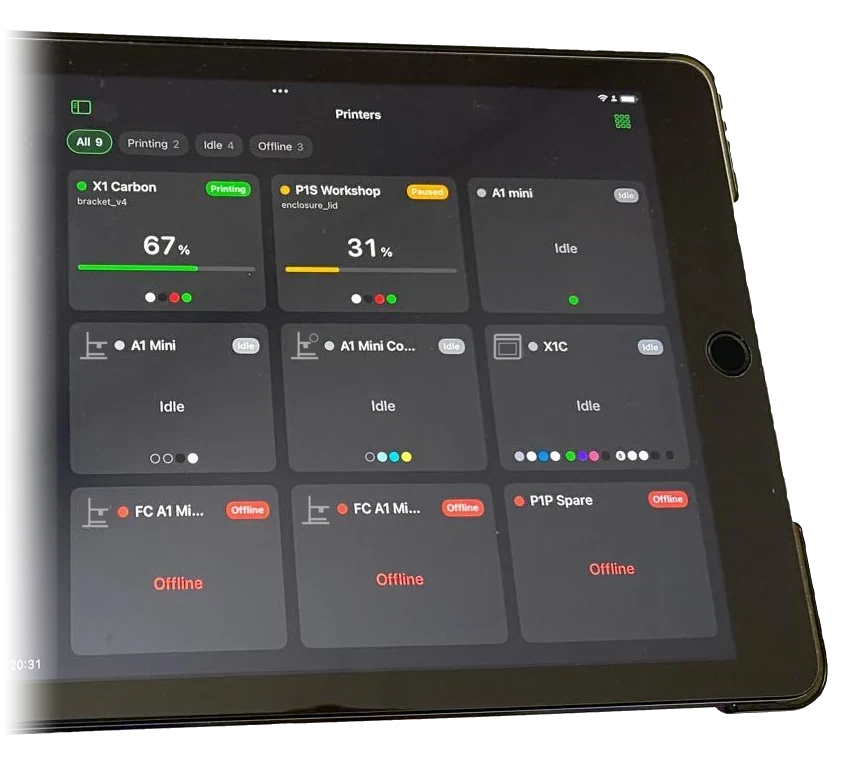
An old iPad. A new workshop job.
Give the iPad in your drawer a permanent view of print progress, temperatures and alerts.
Read the guideLayerGlance is an independent FiddlerCrab product for compatible Bambu Lab printers. Hardware is supplied separately. Check compatibility.